
How to install
your eSIM?
2 minutes, no more. Install your eSIM before departure, comfortably on Wi-Fi — it only activates when you arrive in Japan. Follow the step-by-step guide.

Install the eSIM on your iPhone
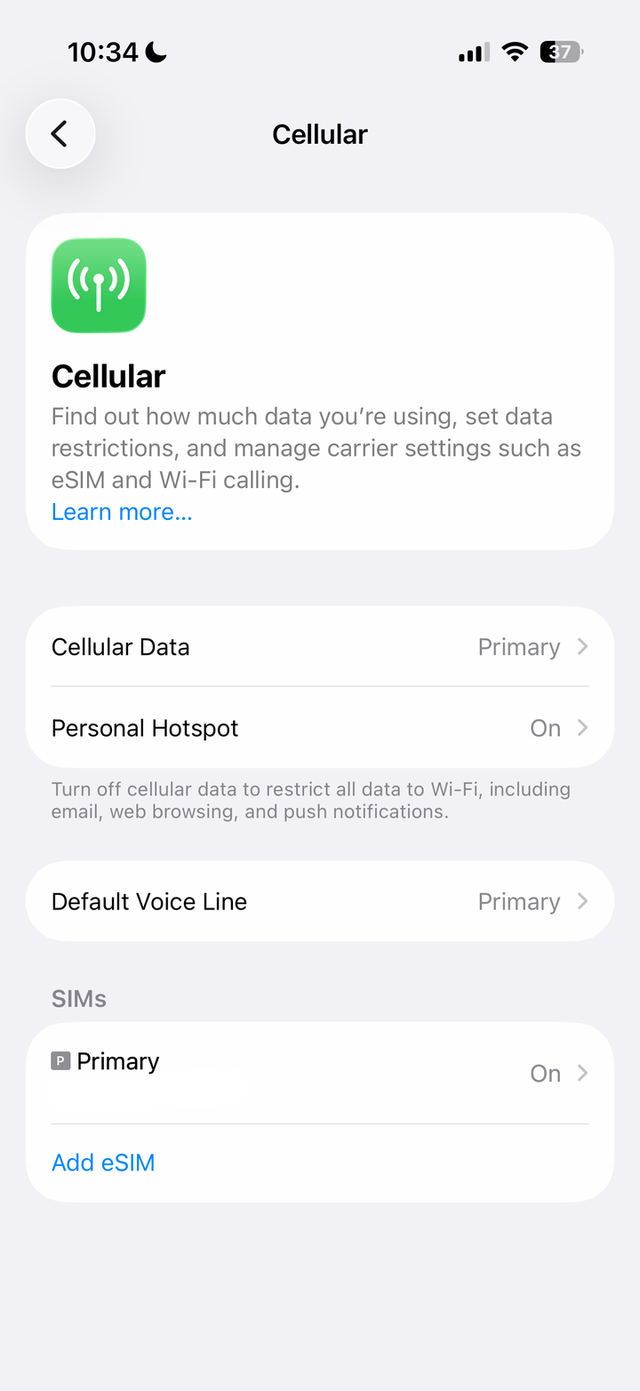
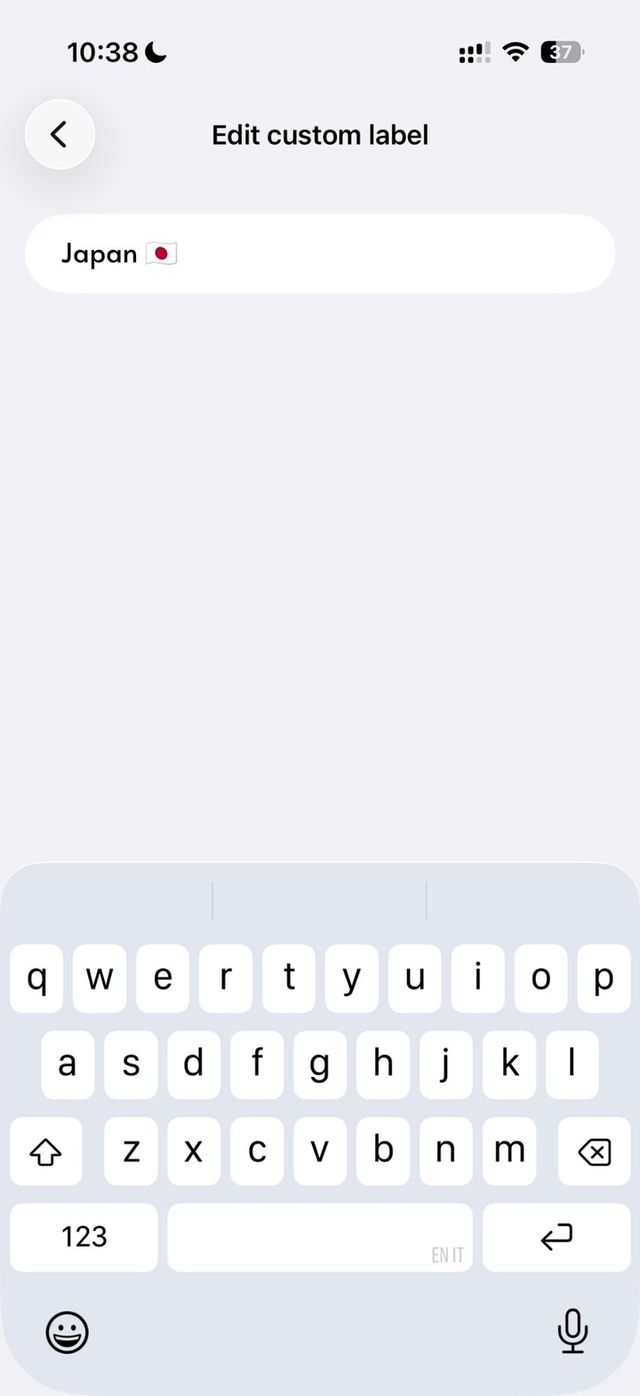
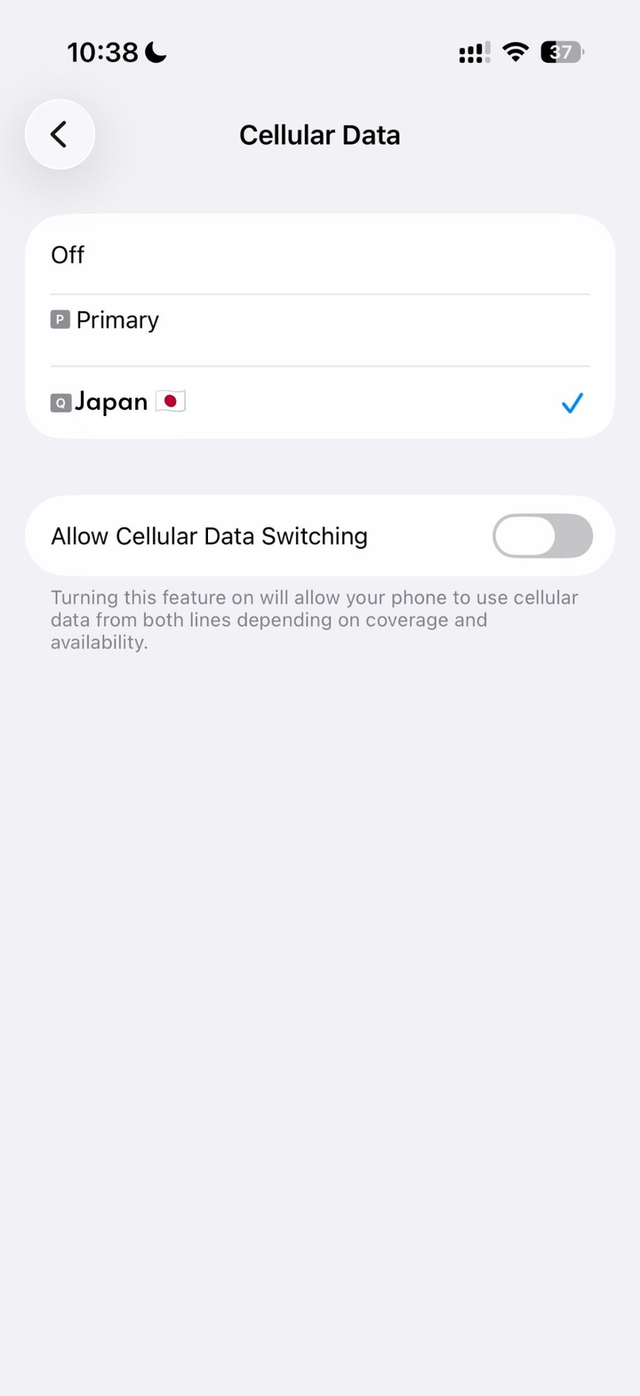
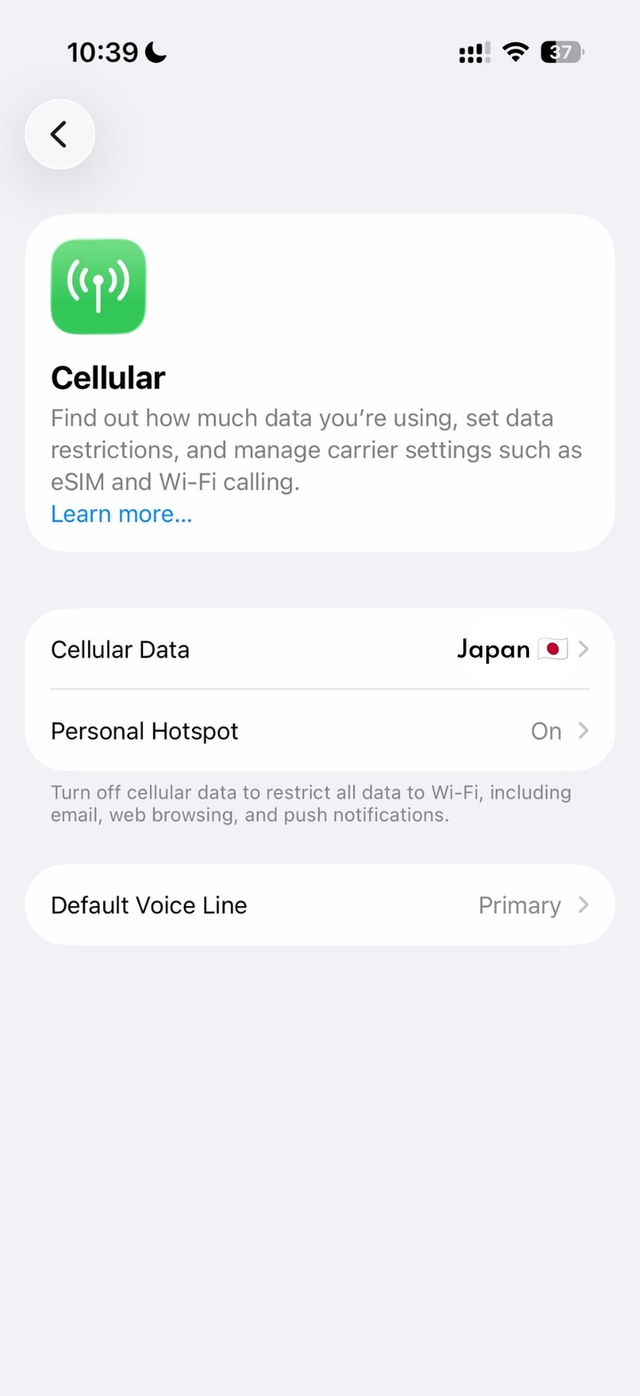
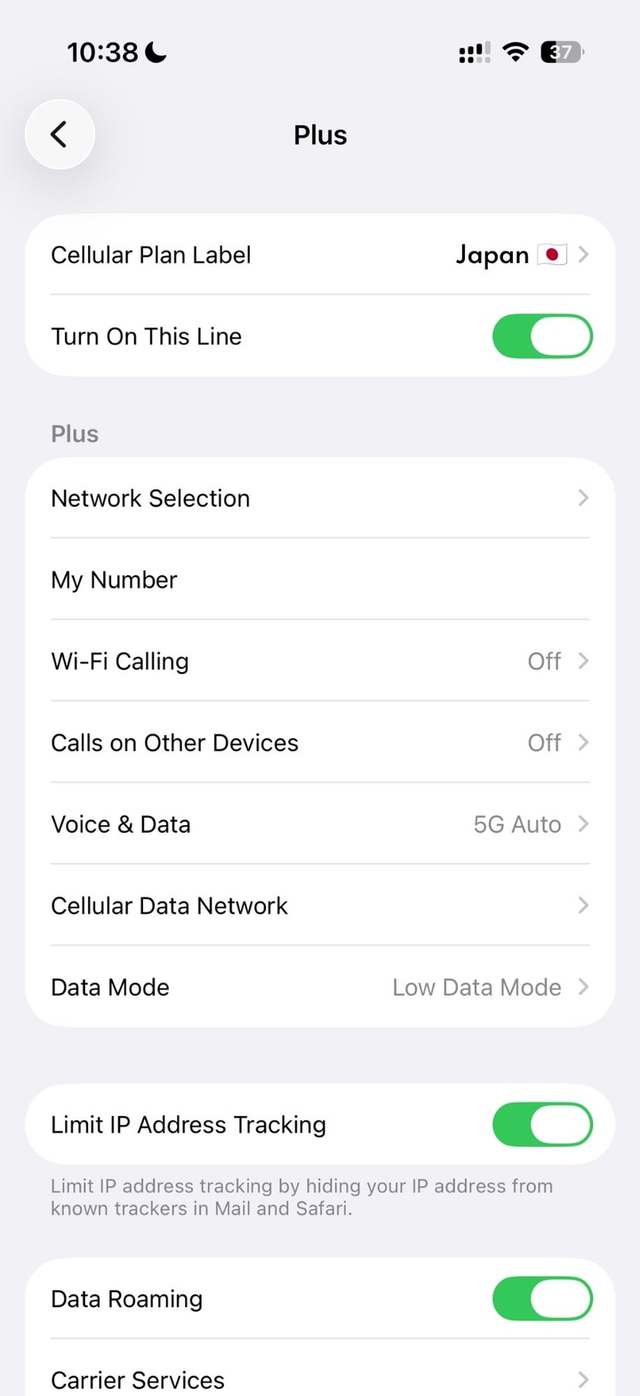
Go to Settings → Cellular (or “Mobile Data”), then tap “Add Cellular Plan” or “Add Mobile Data Plan”.
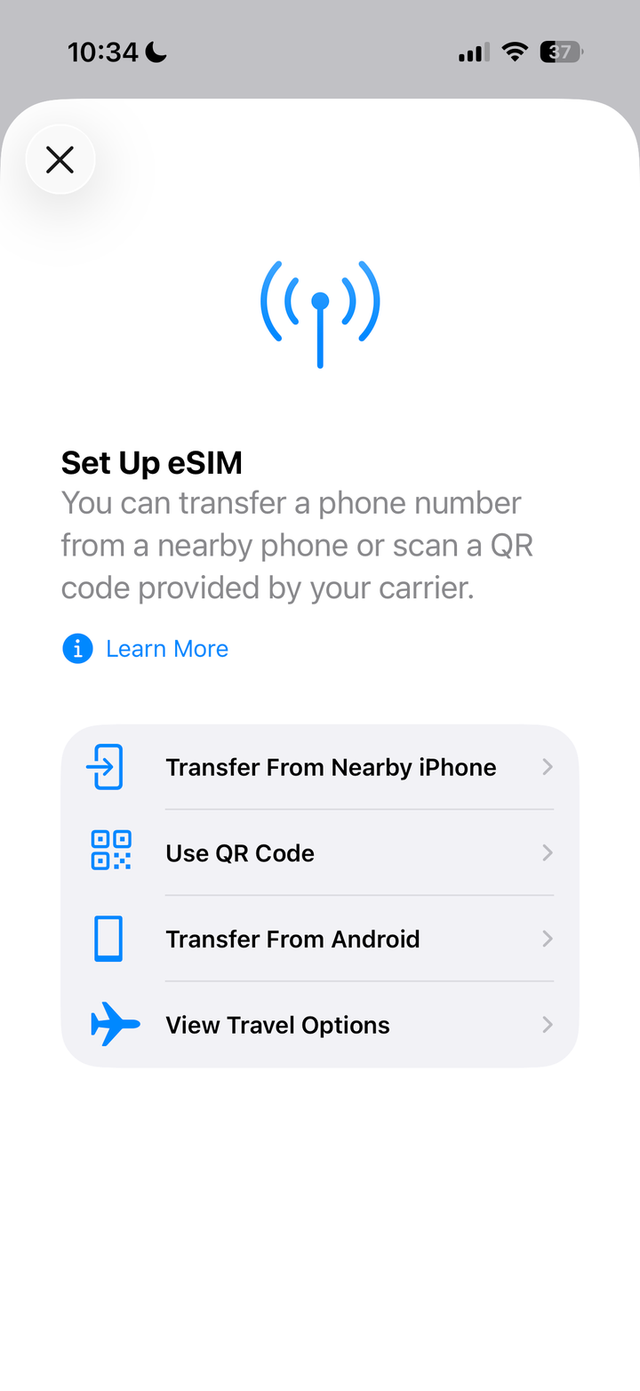
On the “Set Up eSIM” screen, tap Use QR Code.
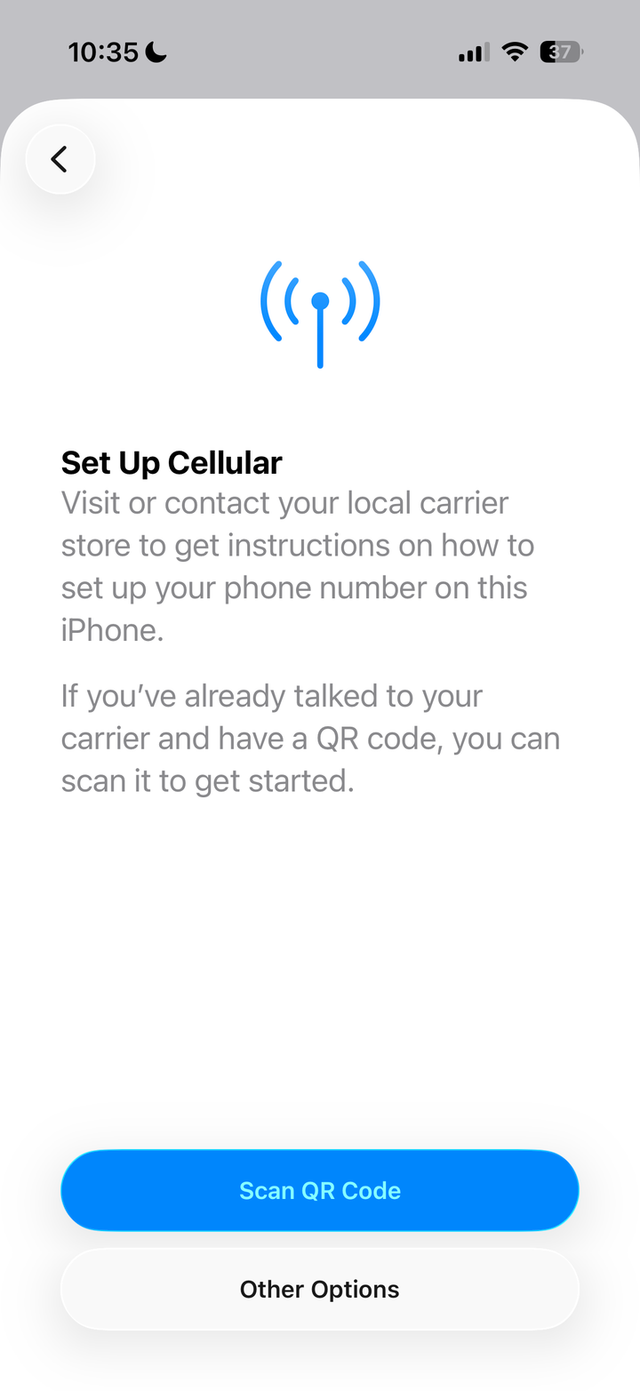
Use your iPhone camera to scan the QR code received by email. You can also save the QR code to your photos and import it from the photo album.
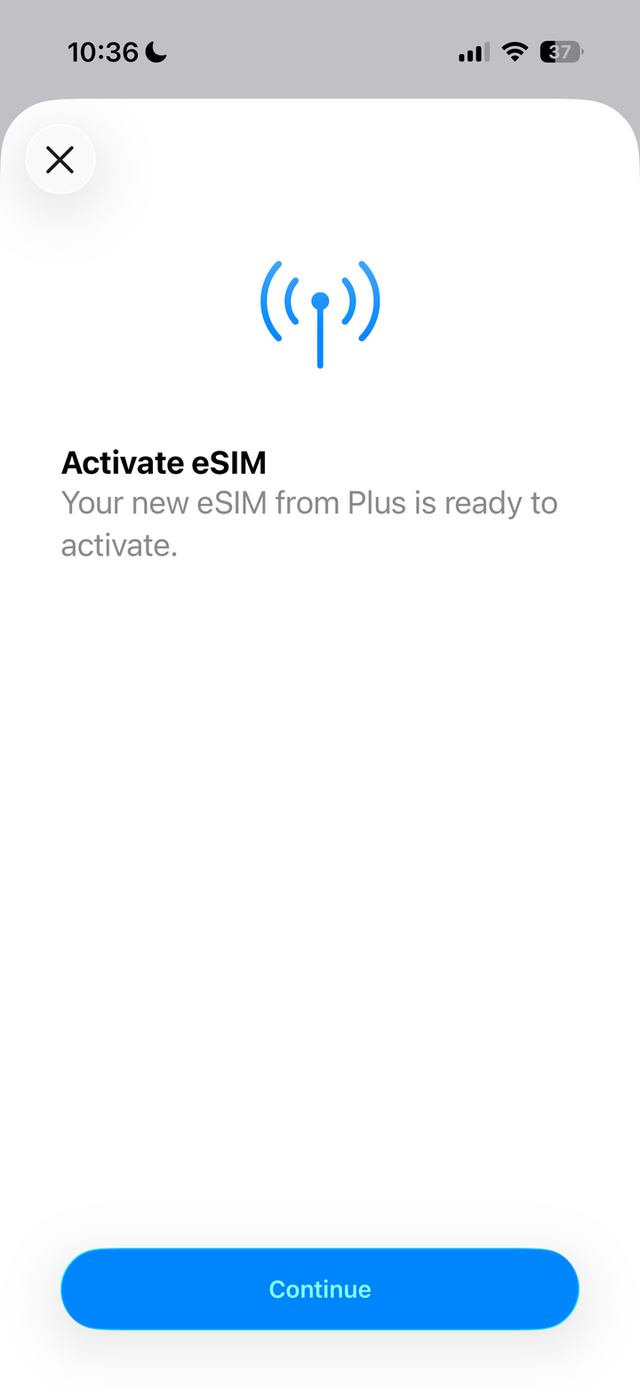
Tap Continue — your iPhone installs the eSIM in a few seconds.
After scanning, give your eSIM a label to find it easily (e.g. “Japan”). Pick a default label or create your own.
On the “Default Line” page, select your eSIM for cellular data. Your usual SIM keeps calls and SMS — you keep your number and WhatsApp.
Your new eSIM now appears in your cellular plan settings. It's installed!
Scroll to “Data Roaming” and turn it on. You'll be connected within seconds.





How to know your eSIM is active?
Install the eSIM on your Android (Samsung, Pixel, Xiaomi…)
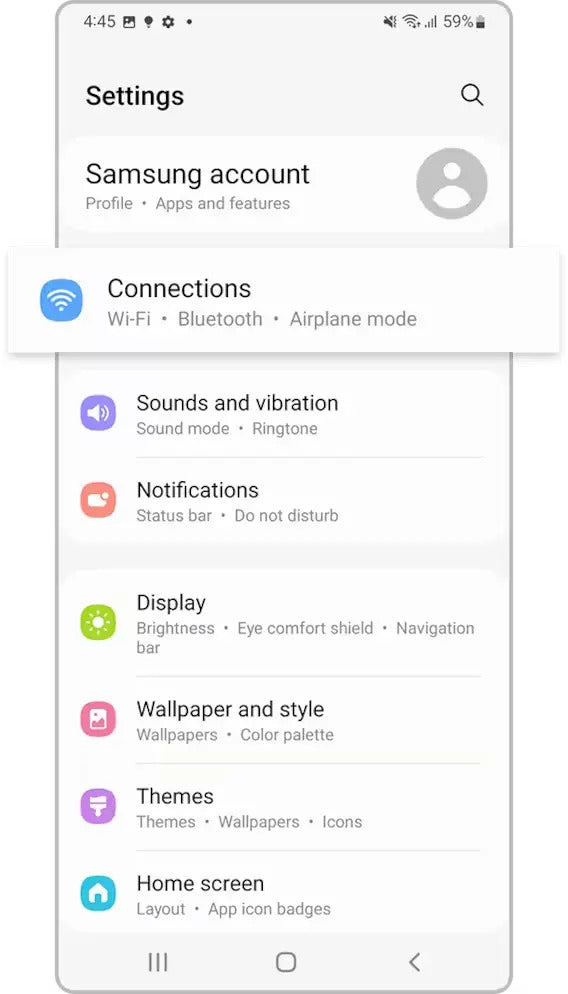
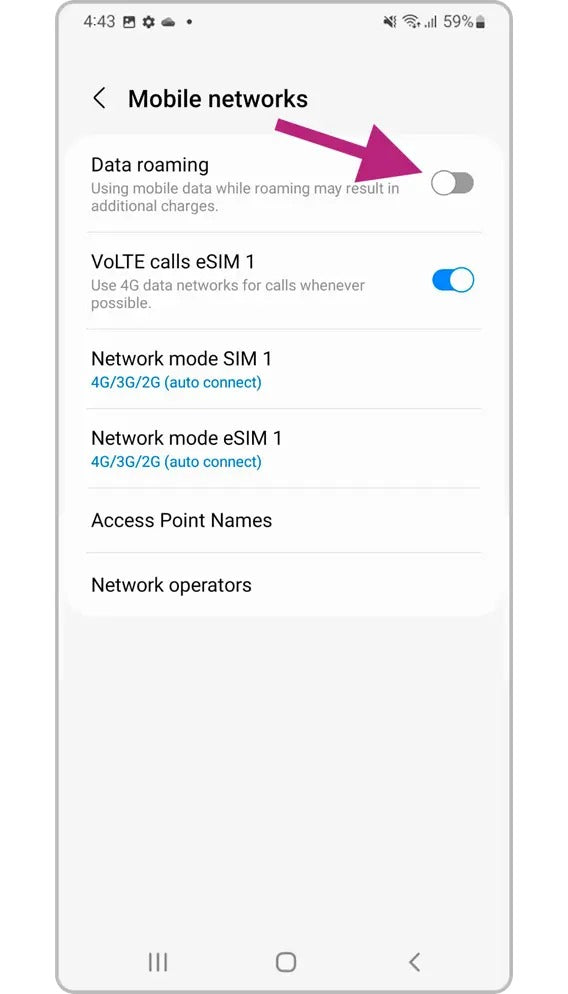
On your Samsung, open Settings and tap Connections.
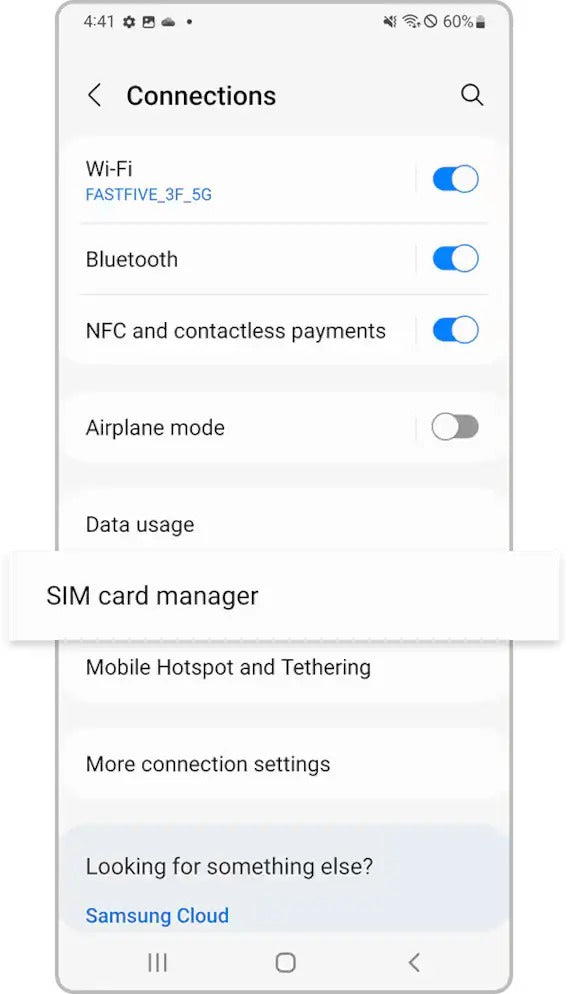
At the bottom of the list, tap SIM card manager.
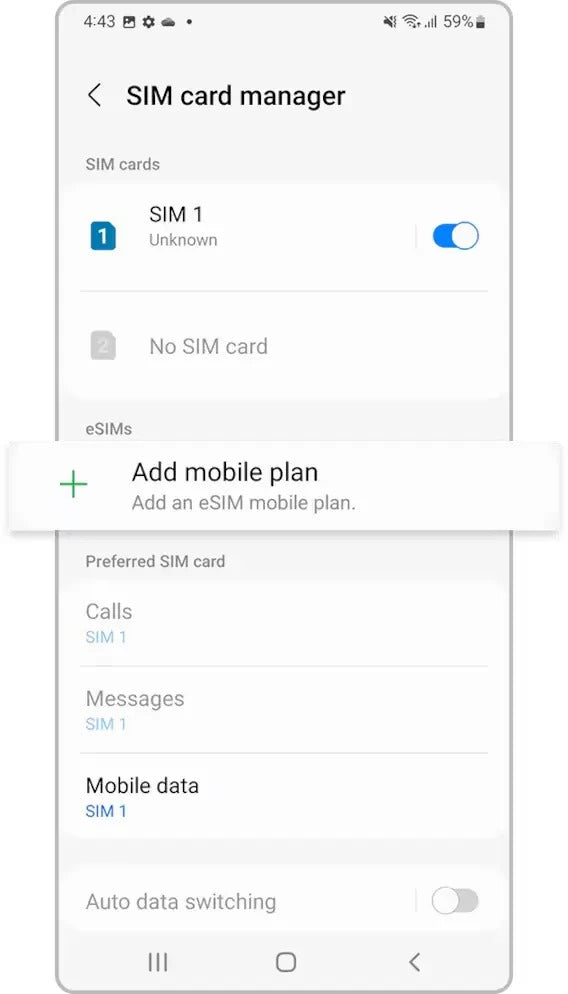
In the eSIMs section, tap Add mobile plan.
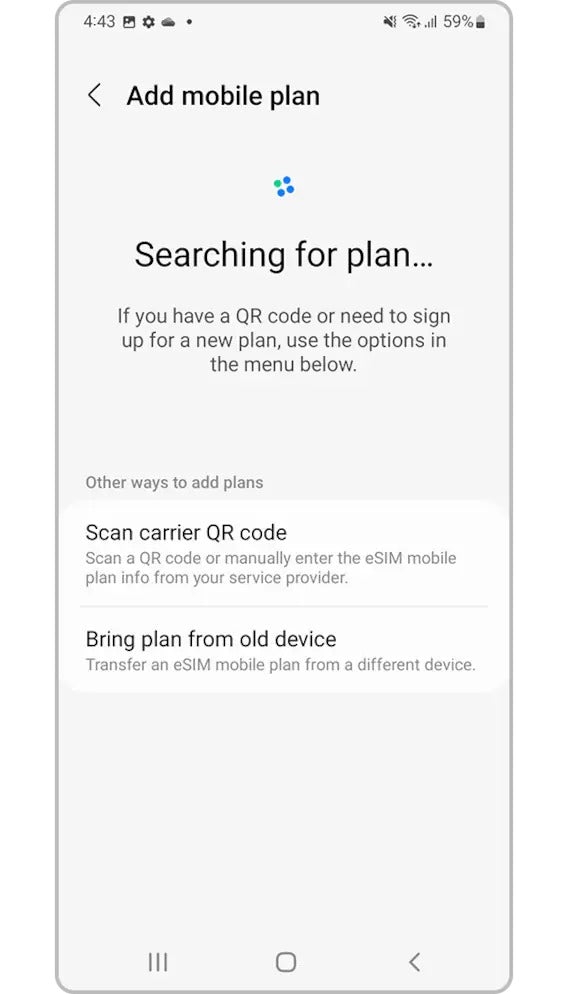
Choose Scan carrier QR code and scan the QR you received by email.
In Mobile networks, enable Data roaming for your eSIM.
How to know your eSIM is active?
Install the eSIM on your Android (Samsung, Pixel, Xiaomi…)
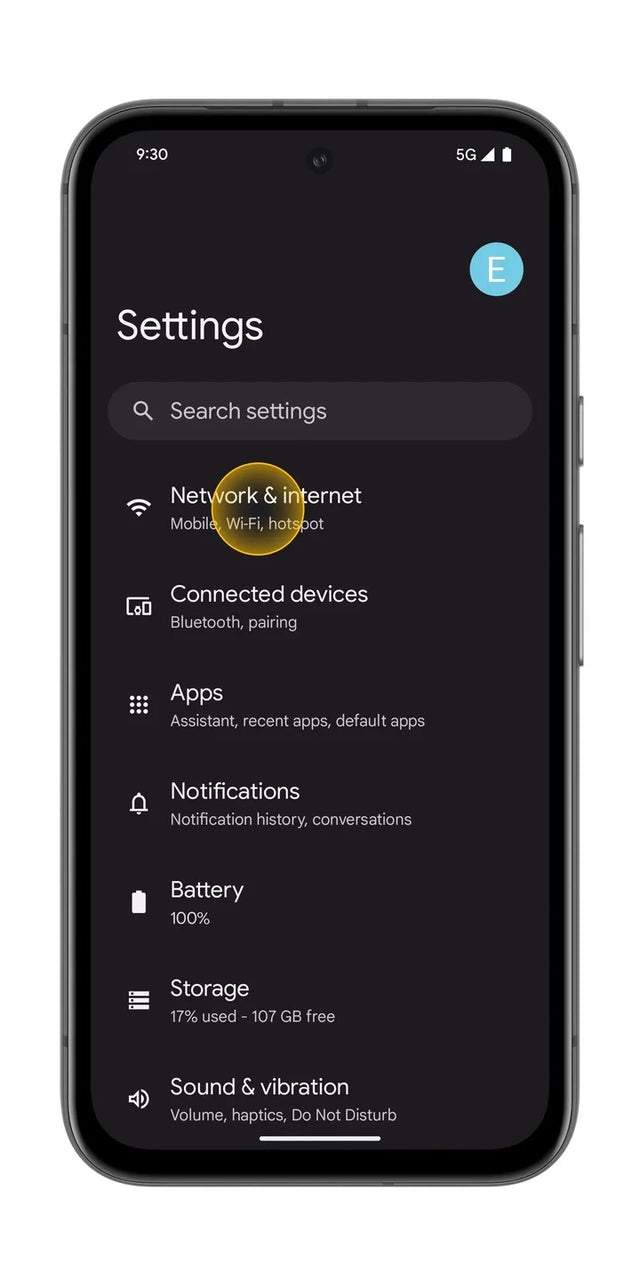
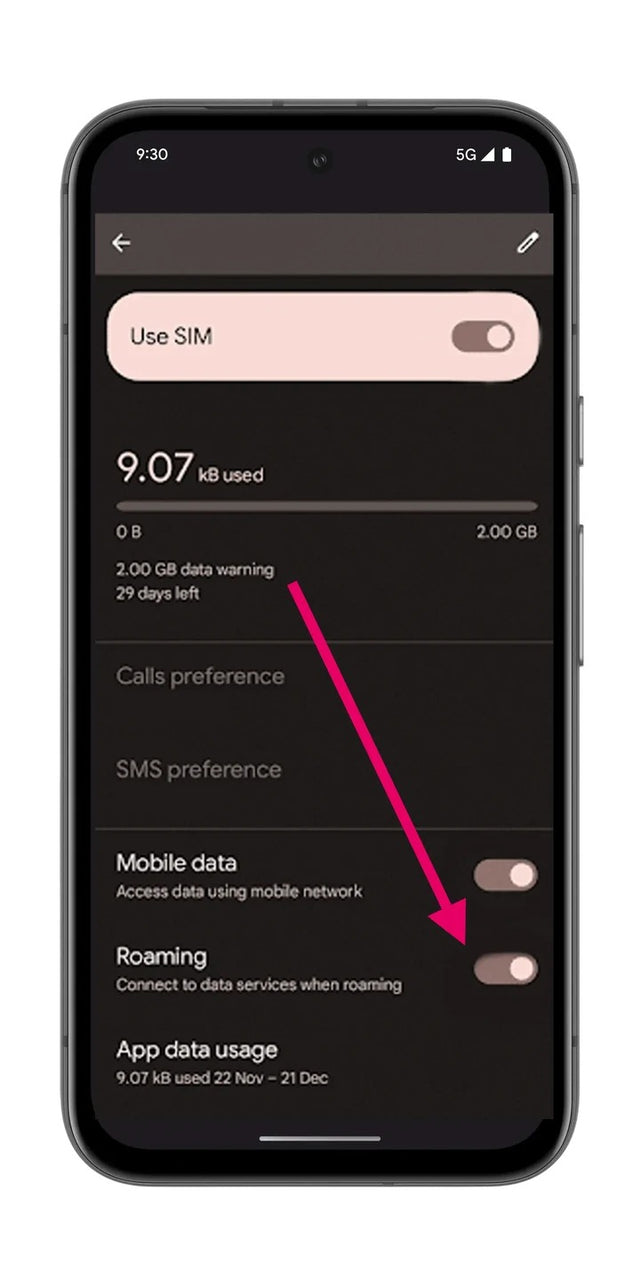
On your Pixel, open Settings then Network & internet.
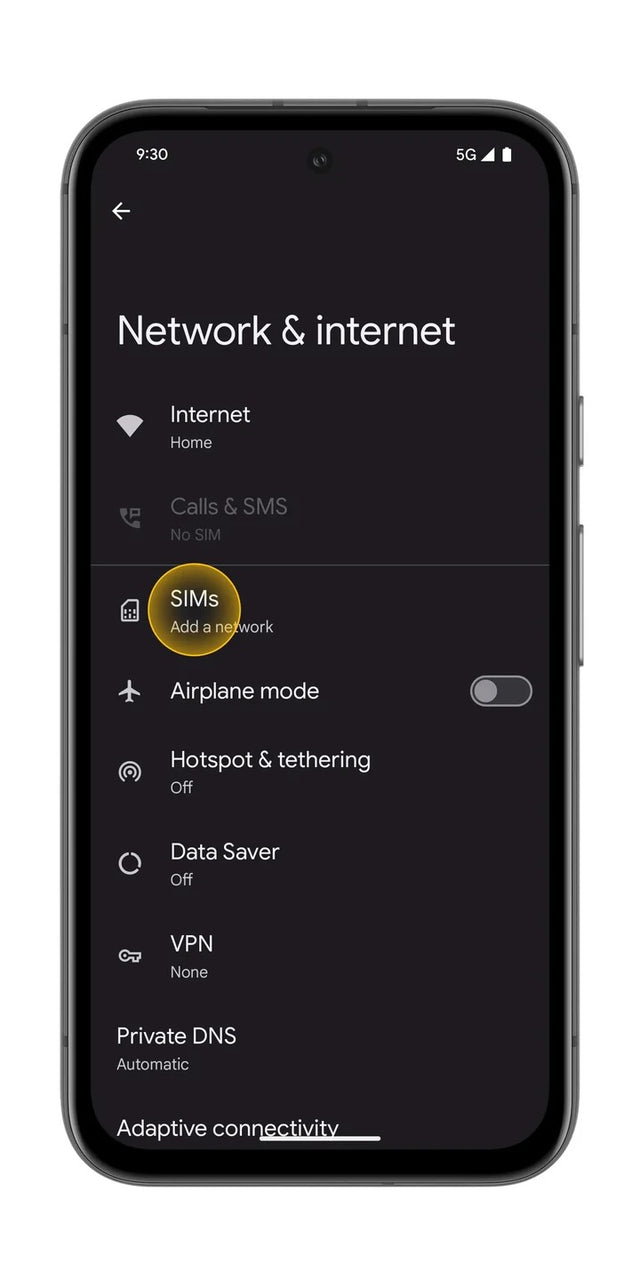
Tap SIMs (Add a network).
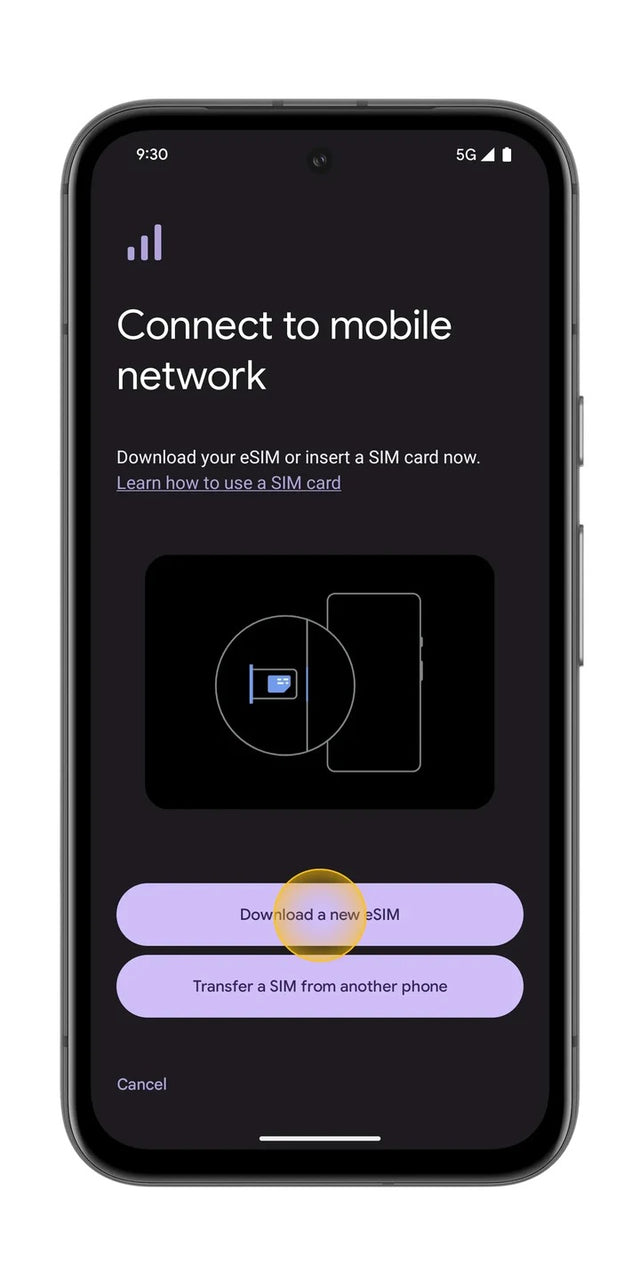
Tap Download a new eSIM, then scan the QR you received by email.
On your eSIM, enable Mobile data and Roaming.
How to know your eSIM is active?
Install the eSIM on your Android (Samsung, Pixel, Xiaomi…)
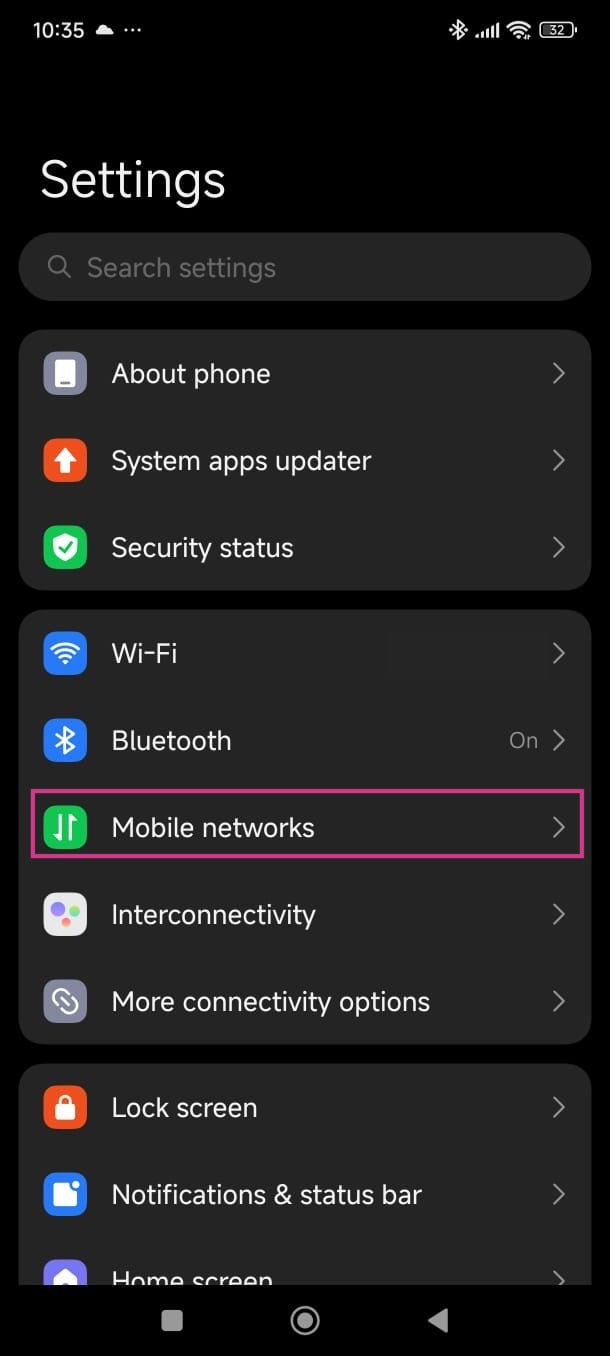
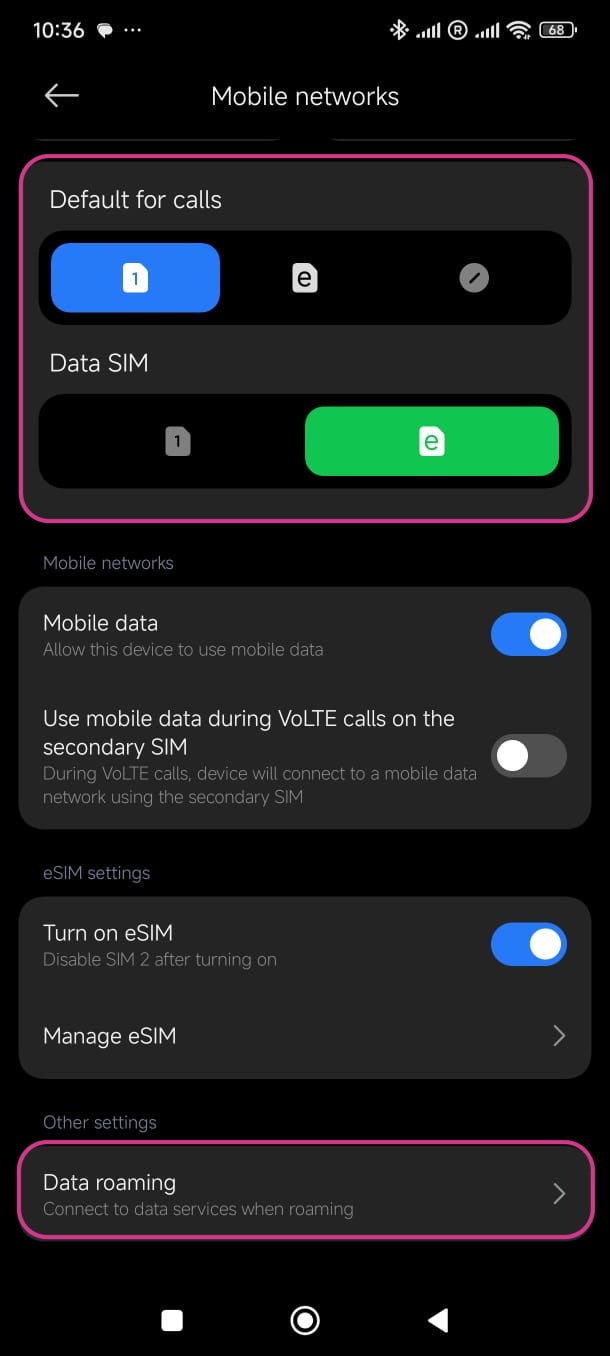
On your Xiaomi or Redmi, open Settings then Mobile networks.
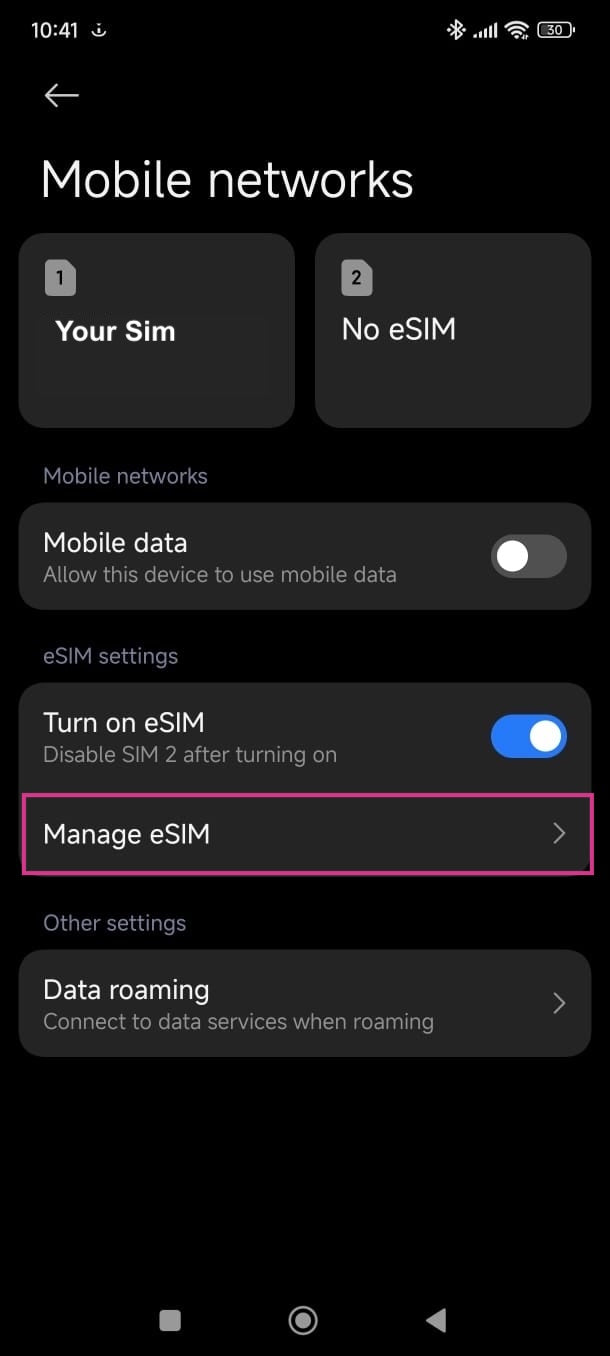
Enable Turn on eSIM if needed, then tap Manage eSIM.
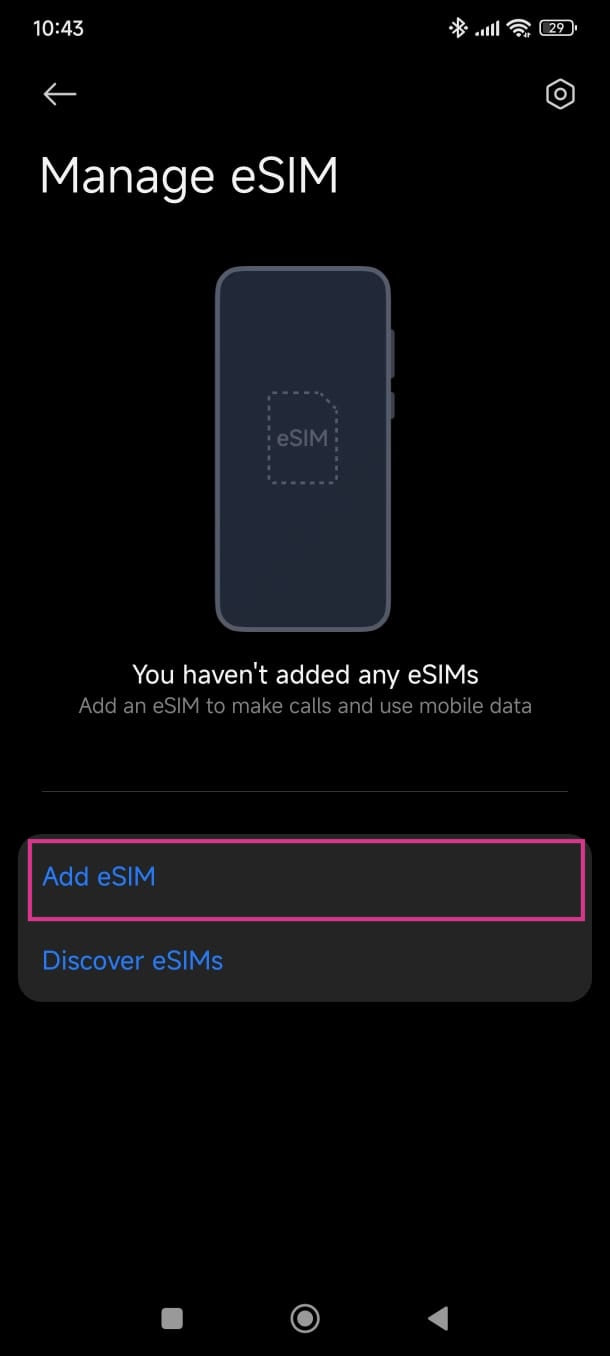
Tap Add eSIM and scan the QR you received by email.
Set the eSIM as your Data SIM, then enable Data roaming.
How to know your eSIM is active?
Install the eSIM on your Android (Samsung, Pixel, Xiaomi…)
Depending on your brand (OnePlus, Oppo, Motorola…), open Settings → Connections or Network & internet.
Tap SIM card manager (or “SIM cards & mobile networks”).
Tap Add mobile plan or “Add eSIM”.
Choose Scan QR code and scan the QR you received by email.
In your eSIM's network settings, enable Data roaming.
How to know your eSIM is active?
 Best practice: install before you leave, on Wi-Fi
Your plan only starts when you arrive in Japan. Also keep a copy of the QR code, printed or on another device.
 Need help? We're here, 7 days a week.
Our support team replies within minutes on WhatsApp and by email — 7 days a week, weekends included.
💬 Contact us